Choose your animated GIF
Drag a GIF into the tool or choose one from your device. Your GIF stays on your device.

Files stay on your device. No upload required.
FREE GIF FRAME EXTRACTOR
Extract frames from an animated GIF and save them as separate PNG images. Preview each frame, download the ones you need, or save them all in a ZIP. Everything runs in your browser — your file is not uploaded.
HOW IT WORKS
Drag a GIF into the tool or choose one from your device. Your GIF stays on your device.
The tool turns the animation into separate pictures, including parts that stay the same between frames.
Browse the pictures, see when each frame appears, and choose the ones you want.
Save a single PNG, download selected frames together as a ZIP, or get a CSV file of frame times.
Need a single reaction face, a drawing reference, or a moment from an animation? This GIF frame extractor shows each frame as a separate picture. Find the frame you want, open a larger preview, and download it as a PNG without saving the entire animation.
GIFEdit turns an animated GIF into individual PNG images at the original picture size. Each PNG is a still image, not a moving GIF. Transparent areas can remain transparent in the PNG files. Save one frame, a range of frames, or one frame every few steps.
Some animated GIFs save only the parts of a picture that change. A GIF frame extractor puts those changes together so every PNG shows the full picture, not just the part that moved.
A GIF can show some frames longer than others. The frame grid tells you when each picture appears and how long it stays on screen. PNG files do not keep the animation timing because they are still images. To save the frame order and times, download the CSV file with the start time and duration of each frame.
All frames are selected by default. You can save one PNG, choose a range, or keep one frame every few frames. Download your selection together in a ZIP file. If you need the timing details too, download the separate CSV file.
Need separate pictures, a shorter animation, or one image containing every frame? Here is which tool to use.
SEE HOW IT WORKS
See how an animated GIF becomes separate PNG images. These stills come from the original GIFs shown here, not from unrelated photos. Open any example in the GIF frame extractor above, then download one frame or all frames as a ZIP.
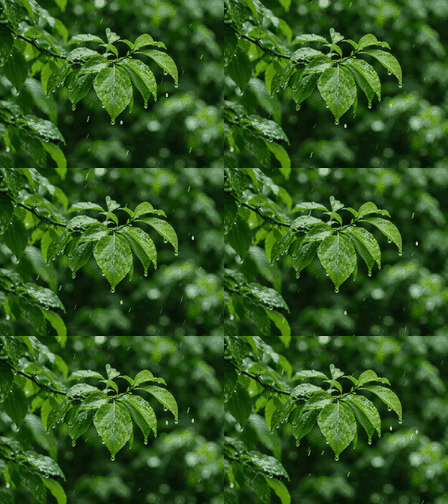
Preparing frame previews…
Turn a moving rain scene into still PNG pictures. Save any moment without changing the original animation.
224 × 168 px · 16 frames · 1.60 seconds

Preparing frame previews…
Pick a moment from this fireball animation. Transparent areas in the original GIF remain clear in the PNG frames.
512 × 512 px · 6 frames · 0.90 seconds

Preparing frame previews…
Browse the conductor's movement frame by frame and download the exact still image you want.
678 × 378 px · 5 frames · 0.85 seconds

Preparing frame previews…
Some GIF frames stay visible longer than others. The PNG pictures keep the appearance, while the splitter shows their times separately.
3 frames · 100, 300 and 700 milliseconds
GOOD TO KNOW
Choose an animated GIF and wait for the frame grid. Download any frame as a PNG or select several frames and download them together as a ZIP.
Yes. Jump to the frame you want or browse the pictures, then click Download Frame to save it as a PNG.
Some GIF animations save only the changing parts of a picture. A GIF frame extractor puts those changes together to show the complete image at each point in the animation.
PNG supports transparent backgrounds. Transparent areas from a GIF may remain transparent in its extracted PNG frames, depending on the original animation and how its frames are displayed.
No. PNG files are still pictures, so they do not keep the GIF's playback timing. GIFEdit shows when each frame starts and how long it lasts, and you can download those times as a CSV file.
This tool saves still PNG images, not two animated GIF files. To shorten an animation while keeping it moving, try the GIF Trimmer.
No. GIFEdit extracts your GIF frames in your browser. Your source GIF is not uploaded to GIFEdit's server.