Choose a sprite sheet
Choose a PNG, JPG or still WebP image that contains animation frames.

Files stay on your device. No upload required.
FREE ONLINE ANIMATION TOOL
Turn a PNG, JPG or still WebP sprite sheet into an animated GIF. Choose the frames, set the speed, preview the movement and download. Your image stays on your device; no account needed.
HOW IT WORKS
Choose a PNG, JPG or still WebP image that contains animation frames.
Choose rows and columns or frame size. Adjust the margin and spacing until each box fits one picture.
Use every frame, a single row, or a frame range. Set FPS, preview the movement, and check the order.
Preview your new animation, then download the GIF. If it looks wrong, adjust the grid or speed and try again.
A sprite sheet is one image containing many small pictures. Each picture becomes one animation frame. Set Columns and Rows to match the grid in your image; the lines over the preview will show exactly what is selected. If the sheet has a border, enter the outer margin. If there are gaps between pictures, add spacing. The frame width and height must fit the image evenly so no artwork gets cut off.
Frames play from left to right, then continue on the next row. A sprite sheet often has several actions, such as idle, walking, or attacking, so choose One row to animate a single action. Use Frame range when you only need part of the sheet. Try 8 or 12 FPS for pixel art, then press Play to check the movement. Higher FPS makes the same frames play faster.
Transparent PNG sprite sheets are especially useful for pixel-art characters. This converter can keep transparent areas as it makes the GIF, and the 2×, 3× and 4× options enlarge pixels without blurring them. GIF supports fewer colors than PNG and cannot reproduce smooth partial transparency, so outlines and soft shadows may look different. Always check the final preview.
Used the GIF to Sprite Sheet converter before? Download its PNG and saved frame settings (.json), then upload the PNG here and import the settings file. That brings back the frame positions and playback times. You can edit the PNG first, as long as its overall size stays the same. Without saved settings, choose a playback speed (FPS) yourself. The loop option is chosen separately for your new GIF.
Sprite Sheet to GIF turns a grid of images into one moving animation. GIF to Sprite Sheet does the opposite: it lays out frames from an existing GIF in a PNG grid. Need separate PNG pictures rather than one GIF? Use the GIF frame extractor.
Check the number of columns and rows first. If the frame boxes do not line up with your artwork, add the margin around the outside or the spacing between frames. Sheets with an incomplete final row can produce blank frames; use Skip last empty frames or select a range to exclude them. If you saved frame settings using GIFEdit, import that file to reuse the correct frame positions.
Your image is converted in your browser and isn't sent to GIFEdit for processing. You can make GIFs with up to 240 frames when the image size allows. For very large sheets or long animations, try fewer frames or a smaller output size.
GET THE FRAMES RIGHT
Each box in the grid should contain one complete picture. Start with the number of columns and rows, then check the lines over your uploaded image. You can also enter the width and height of one frame if those numbers are known. Use these sample layouts to check your own settings.
| Example | Sprite sheet | Grid settings | What you get |
|---|---|---|---|
| Walking animation | 288 × 48 px | 6 columns, 1 row; no gaps | 6 frames, each 48 × 48 px |
| Multiple character actions | 192 × 144 px | 4 columns, 3 rows; no gaps | 12 frames, each 48 × 48 px. Select Row 2 for a 4-frame walking animation. |
| Transparent sheet with gaps | 186 × 94 px | 4 columns, 2 rows; 4 px outer margin; 6 px spacing | 8 cells, each 40 × 40 px. Skip the last 2 empty cells to use 6 frames. |
If the grid crosses a character or leaves part of a frame outside its box, the columns, rows, margin or spacing do not match your image. Fix the grid before creating your GIF. If your frames are different sizes, this grid tool cannot cut them automatically. You can reuse saved frame settings from GIFEdit when they describe equal-sized frames.
MAKE THE MOTION LOOK RIGHT
For a character sheet with idle, walking and attack animations on separate rows, choose One row rather than All frames. For example, select Row 2 on a 4 × 3 sheet to animate only the four walking poses. Use Frame range when the frames you need are part of a longer row.
Twelve frames at 12 FPS play for about one second. Six frames at 12 FPS play for about half a second. Choose a slower speed for deliberate movement or a faster one for quick actions. GIF frame times are rounded slightly, so the final length may differ a little from the exact time you would calculate using FPS.
If you used GIF to Sprite Sheet, download the PNG and the saved frame settings (.json). After editing the PNG, upload it here and import the settings file to reuse the frame positions and playback times. The image width and height must stay the same.
Choose 1× to keep the original frame dimensions. For small sprites, use 2×, 3× or 4× to enlarge the animation without smoothing its pixels. Transparent backgrounds can remain transparent, but soft, partly transparent edges may look different in the downloaded GIF.
NEED HELP?
| Problem | What to do |
|---|---|
| Frames are cut off or shifted | Match Columns, Rows, Outer margin and Space between frames to the image. The grid lines should surround each picture exactly. |
| The GIF contains empty pictures | Choose a single row or enter how many empty cells to skip at the end. A partly filled final row should not become extra GIF frames. |
| Walking, idle and attack poses play together | Choose One row, or specify a frame range. All frames follows the entire sheet from left to right and top to bottom. |
| Motion is too fast or slow | Adjust FPS, then press Play to preview it. If you imported saved settings, turn off Keep saved frame timing to choose a new FPS. |
| The GIF looks blurred or has different edges | Keep 1× for the original size, or choose 2×–4× for sharp, blocky pixels. GIF has fewer colors and simpler transparency than PNG, so some edges may look different. |
| The image or animation is too large | Try fewer frames, a smaller image or 1× scale. Sheets are limited to 20 MB on desktop or 12 MB on mobile, with up to 240 output frames when the image size allows. |
TRY A SPRITE SHEET
Download one of these example sprite sheets to try the tool. Each card also includes a separately prepared GIF showing the intended movement. Your downloaded GIF may have slightly different colors or a different file size.
 Sprite sheet PNG
 Example animation
Six pictures of a character walking, arranged in one row.
288 × 48 px · 6 columns × 1 row · 6 frames · 12 FPS · 0.50s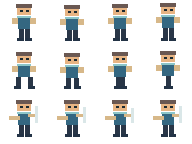 Sprite sheet PNG
 Example animation
Three action rows. The example GIF uses only the middle walking row.
192 × 144 px · 4 columns × 3 rows · Row 2 · 4 frames · 0.48s Sprite sheet PNG
 Example animation
A sheet with a 4-pixel border, 6-pixel spacing and two empty slots at the end.
186 × 94 px · 4 × 2, 4 px margin, 6 px gap · 6 frames · 2 blank slots skipped · 0.60sGOOD TO KNOW
Upload a sprite sheet image, set the grid to match its rows and columns, choose which frames to use, set the speed, then create and download the animated GIF.
Yes. GIFEdit supports PNG, JPG and still WebP sprite sheets. The pictures in the sheet become frames of a new GIF.
Yes. Select One row and enter its row number. This is useful when a character sheet contains several different actions.
Try 8 to 12 FPS for a starting point. Use the preview to decide whether the movement should be slower or faster. You can set 1 to 50 FPS.
Check Columns, Rows, Outer margin and Space between frames. Each box in the grid must line up with exactly one frame.
Transparent areas can be preserved, but GIF does not support the smooth partially transparent edges available in PNG. Some edges or shadows may look different.
No. GIFEdit processes the selected sprite sheet in your browser. Your image isn't sent to GIFEdit for conversion.