Choose your WebP
Select a static or animated WebP file. You can also drag it into the converter.

Files stay on your device. No upload required.
FREE ONLINE WEBP TO GIF CONVERTER
Convert static or animated WebP files to GIF for free. Keep your animation, compare the result, and download your GIF. Your file stays on your device.
HOW IT WORKS
Select a static or animated WebP file. You can also drag it into the converter.
Click Convert to GIF. A successful conversion keeps the original picture dimensions and turns any animation into a moving GIF.
Compare your original WebP with the GIF, check the new file size, then download the result.
If your WebP moves, the converted GIF should move too. GIFEdit keeps the animation frames in order and matches their playback times as closely as the GIF format allows. Colors and soft transparent edges may change, so compare both previews before downloading.
Choose a WebP and check File type and Frames above the Convert to GIF button. An animated WebP has multiple frames and a playback length. A static WebP is just one picture, so the GIF will also be still. If you expected movement but see Static WebP, check the original file.
WebP often stores images and animations in smaller files than GIF. Your GIF may therefore be larger, even when its dimensions and animation length stay the same. This is normal. If the GIF is too large, use the GIF compressor, resize the picture, or shorten the animation after conversion.
GIF can make a pixel completely transparent or completely visible, but it cannot reproduce the smooth partially transparent edges of WebP. A transparent background can often be kept, but soft edges, shadows and some colors may look different. Compare the original and converted previews if transparency matters to you.
Convert WebP to GIF when a website, app or workflow needs a GIF file. If your destination already supports animated WebP, keeping the WebP is often better for picture quality and file size. Conversion does not improve the original resolution or restore details that have already been compressed away. GIF works especially well for short, simple animations with relatively few colors.
GIFEdit converts your WebP in your browser without uploading the file. You can choose files up to 40 MB on desktop or 20 MB on mobile. Animations can have up to 500 frames, although large pictures may exceed your device's limits sooner. If conversion fails, try a smaller picture or a shorter animation.
BEFORE YOU CONVERT
The picture can stay the same size and keep its animation, but colors, transparency, playback and file size may change. Here's what to look for.
| What to compare | Original WebP | Converted GIF |
|---|---|---|
| Picture size | Original width and height | Same width and height |
| Animation frames | Still image or multiple moving frames | Still stays still; moving frames are kept when conversion succeeds |
| Playback timing | How long each animation frame appears | Very fast movement may play a little differently |
| Colors and transparency | More color detail and smooth transparent edges | Fewer colors; pixels are either fully transparent or fully visible, so soft edges may change |
| File size | Often more compact | Frequently larger, even with the same dimensions |
After converting, compare the original and GIF previews and check their file sizes before downloading.
HAVING TROUBLE?
Some WebP files are too large or cannot be read correctly by your browser. Try the suggestions below.
| What happens | What to try |
|---|---|
| My WebP file is rejected | Make sure it is a real WebP file. Renaming a PNG or JPG to .webp does not convert it. Try exporting the image as WebP again. |
| The GIF is not animated | Check the Source and Frames details. A Static WebP contains only one picture. If the file is animated but conversion fails, try a different browser. |
| Conversion stops or fails | Try a smaller or shorter WebP. Files are limited to 40 MB on desktop and 20 MB on mobile; animations with more than 500 frames or very large pictures cannot be converted here. |
| The animation or edges look different | A GIF may show fewer colors, harder-looking edges or slightly different movement. Compare both previews; if the motion looks wrong, try another browser. |
If your converted GIF is too large, try compressing it, resizing it, or cutting the animation shorter.
SEE THE DIFFERENCE
Compare a WebP file with a GIF version of the same example. The GIF samples were made separately, not with the converter above. Download a WebP to try it yourself; the GIF you create may have different colors or a different file size.
 Original WebP
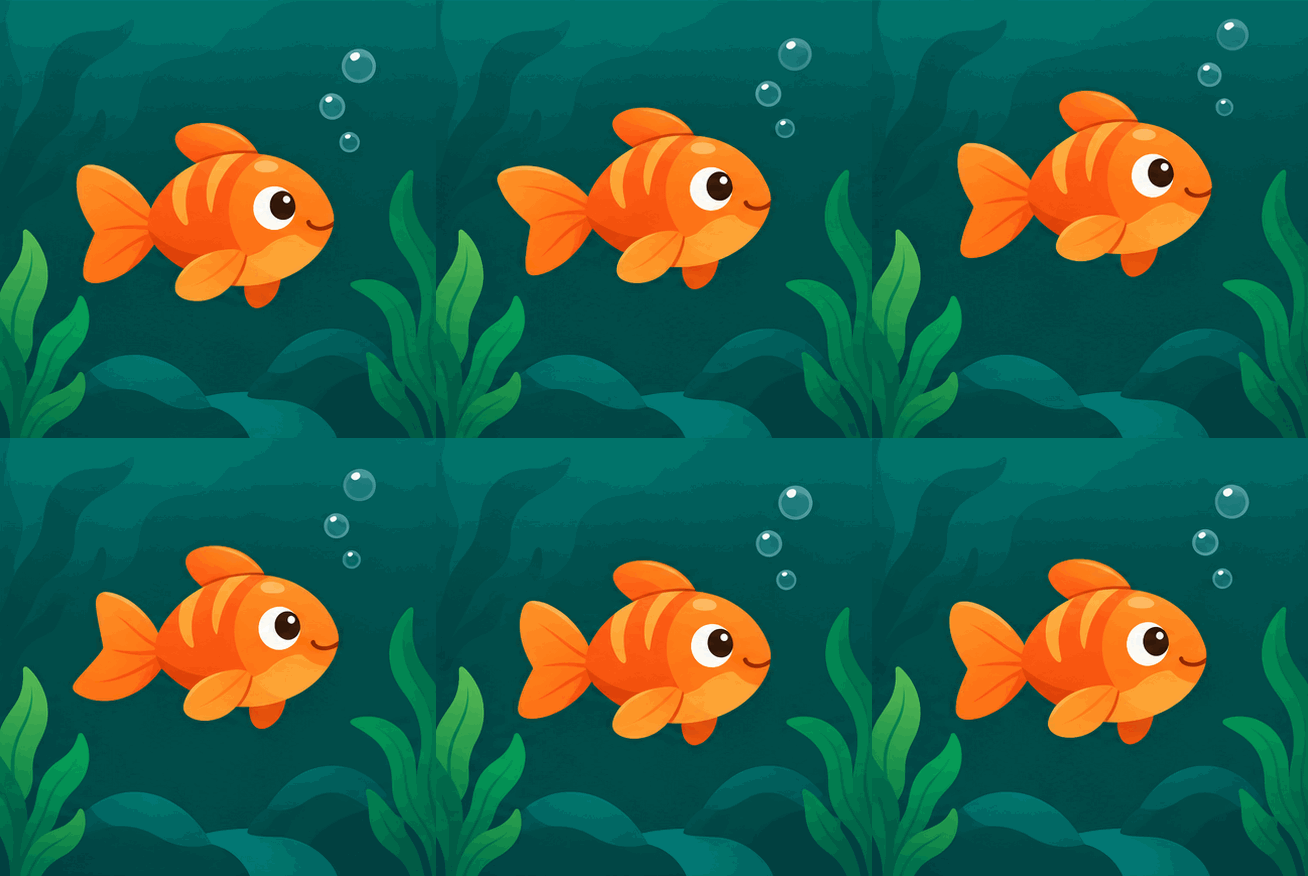 Example GIF
A moving illustration with eight equal-length frames.
436 × 438 · 8 frames · 1.12s
Sample file sizes: WebP 247 KB → GIF 287 KB
 Original WebP
 Example GIF
An animation with a transparent background. The GIF may render soft edges differently.
360 × 360 · 4 frames · 0.72s
Sample file sizes: WebP 62 KB → GIF 90 KB
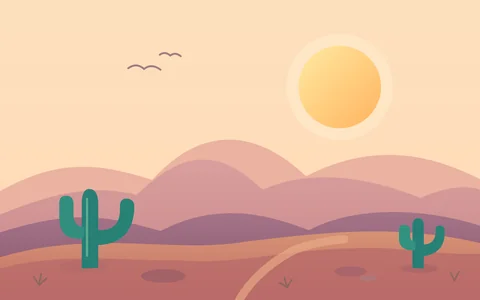 Original WebP
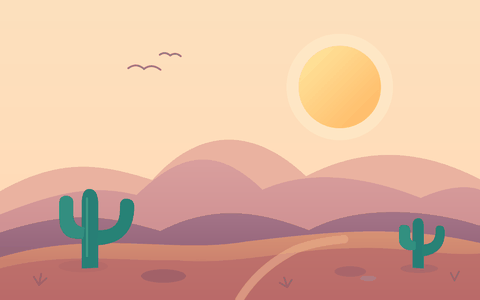 Example GIF
One still image becomes one GIF frame, without motion.
480 × 300 · 1 frame · Still image
Sample file sizes: WebP 4.8 KB → GIF 23 KB
GOOD TO KNOW
Choose a WebP file, click Convert to GIF, then preview and download the new GIF. Your file stays on your device.
Yes. An animated WebP can become a moving GIF. If GIFEdit cannot keep the complete animation, it shows an error instead of offering an incomplete download.
Check File type and Frames after choosing your WebP. A static WebP makes a still GIF. If your WebP is animated but conversion fails, try a different browser or a smaller file.
GIF is usually less efficient than WebP, so the new file can be larger. Try compressing your GIF or resizing it if you need a smaller file.
Often, yes. GIF supports fully transparent pixels but not the same smooth partial transparency as WebP, so soft edges and shadows may change.
Not always. GIF supports fewer colors and different transparency than WebP. GIFEdit keeps the original picture dimensions, but colors and details may change.
No. The conversion runs in your browser, and your WebP file is not uploaded to GIFEdit's server.